Tag: AWS

  • VCF Automation – Tenant Management

    VCF Automation – Tenant Management

    In today’s multi-tenant cloud environments, VMware Cloud Foundation Automation (VCFA) offers a robust layered architecture that seamlessly bridges enterprise-grade infrastructure management with developer-ready self-service capabilities.

    By clearly separating responsibilities—from VMware Cloud Service Providers who manage the physical and virtual infrastructure, to organization administrators who allocate resources, and finally to developers who consume them—VCFA enables efficient resource governance, operational consistency, and scalability. This structured approach not only supports multi-tenancy and workload isolation but also accelerates innovation by empowering end users to deploy applications and services quickly within well-defined boundaries.

    Why Tenant Management Matters?

    Tenant management is more than just dividing resources—it’s about ensuring cost efficiency, security, scalability, and compliance in a shared infrastructure. In VCFA, these capabilities allow VMware Cloud Service Providers to maximize utilization without compromising performance or governance for individual tenants.

    Key concepts to understand from both the Provider and Tenant perspectives:

    Projects

    Projects control user access to namespaces and user ownership of provisioned resources. All organizations are created with a default project. The default project is empty and does not have any namespaces or users.

    Example: A VMware Cloud Service Provider might assign a dedicated project to each customer department for clearer billing and isolation.

    Regions

    The Regions page lists all the regions where the organization has a quota in. Organizations can have a quota in one or many regions. Your provider administrator assigns the regional quota to your organization. Quota in a region can come from one or many vSphere Zones within that region.

    Example: A global enterprise hosted by a VMware Cloud Service Provider might have quotas in Asia and Europe to ensure low-latency access for local teams.

    Namespace Class

    Namespace classes are templates for namespace provisioning. These templates can be used to standardize namespace attributes, like utilization limits, reservations, VM classes, storage classes, and content libraries. organizations comes preconfigured with three default namespace classes (small, medium, and large), which are meant to serve as example templates. The only different attributes among these built-in templates are the CPU and Memory limits. Administrators can use these templates as-is or can modify them to suit their needs.

    Namespace

    Projects are the central construct for organizing and allocating infrastructure resources to tenants or teams. As the organization administrator, you manage and distribute infrastructure by assigning namespaces to projects. When configuring a project, you must add at least one namespace so that users within the project can begin provisioning workloads such as virtual machines, VMware Kubernetes Service (VKS) clusters, or other supported resources. Namespaces act as scoped resource pools, defining limits for CPU, memory, and storage to ensure fair allocation and performance consistency. Each namespace is tied to a Virtual Private Cloud (VPC) and a namespace class, which in turn is associated with at least one zone to determine placement and availability. This structure not only enforces resource governance but also enables automation workflows to deploy consistently within predefined boundaries. All organizations are created with a default project, which is initially empty and contains no namespaces or users, providing a baseline starting point for configuration.

    Example: A tenant of a VMware Cloud Service Provider might create separate namespaces for development and production to avoid accidental resource conflicts.

    Virtual Private Clouds (VPCs)

    A Virtual Private Cloud (VPC) in VMware Cloud Foundation Automation (VCFA) offers an isolated networking environment that can be associated with one or more namespaces. Organizations can create multiple VPCs and assign each to specific namespaces based on workload or isolation requirements.

    Each VPC is an independent network and supports three types of IP address spaces, each offering different levels of reachability:

    • Private CIDRs: These addresses are internal to the VPC and are not routable outside without NAT. They are managed by the VPC administrator and do not need to be globally unique, allowing reuse across multiple VPCs.
    • TGW Private IP Blocks: These IP blocks are scoped at the organization level and are advertised through the Transit Gateway (TGW) within the organization. Organization admins define these blocks, and project admins can allocate subnets from them for their VPCs. This enables direct communication between VPCs in the same organization using the TGW Private IP space.
    • External IP Blocks: Managed by the provider admin, these IPs enable outbound access through Source NAT. Organization admins can assign subnets from provider-defined external blocks, giving workloads external connectivity while still using internal addressing.

    You can choose to deploy a separate VPC per namespace for stricter isolation, or share a VPC across namespaces where network separation is not required.

    Transit Gateways

    Each organization has a transit gateway which provides connectivity to the provider gateway within the organization. One or more VPCs are connected to the transit gateway, and that connection is defined by a VPC connectivity profile. Each VPC has connected workloads and a private subnet. SNAT rules translate addresses from this private subnet to a public address in the IP spaces block. This infrastructure enables the organization and its workloads to connect to external networks.

    You can view what transit gateways are available to your organization on the Manage & Govern > Networking > Transit Gateways page.

    IP Management

    Provider can use IP Spaces to manage their IP address allocation needs. IP Spaces provide a structured approach to allocating public IP addresses to different organizations, enabling connectivity to external networks.

    An IP space consists of a set of CIDR blocks that are reserved, these CIDRs must be dedicated to  and used by organization administrators as they configure services. An IP space can only be IPv4.

    Organization administrators can create and manage the private IP blocks within their organization. there tenant can view external IP address blocks assigned to this organization by a provider. You can also create and view private TGW IP address blocks for the entire organization to use. Finally, you can view private VPC IP address blocks that are applicable to specific VPCs.

    In essence, VMware Cloud Foundation Automation’s tenant management capabilities provide a structured, role-based framework for organizing projects, namespaces, VPCs, transit gateways, and IP resources. By aligning provider and tenant responsibilities, VMware Cloud Service Providers ensure secure isolation, consistent governance, and streamlined automation—empowering organizations to scale efficiently while maintaining full control over infrastructure and networking resources.
  • Deploy, Run, and Manage Any Application with VMware Cloud Director Content Hub

    Deploy, Run, and Manage Any Application with VMware Cloud Director Content Hub

    In today’s fast-paced digital landscape, businesses require agile and scalable solutions to deploy and manage their applications efficiently. VMware Cloud Director Content Hub (VDCH) introduced in VMware Cloud Director 10.5, offers a robust platform for a simplified and automated way to deploy, run, and manage a wide range of applications. In this blog, we’ll explore the key features and benefits of VMware Cloud Director Content Hub and how it streamlines the application deployment process.

    What is Content Hub ?

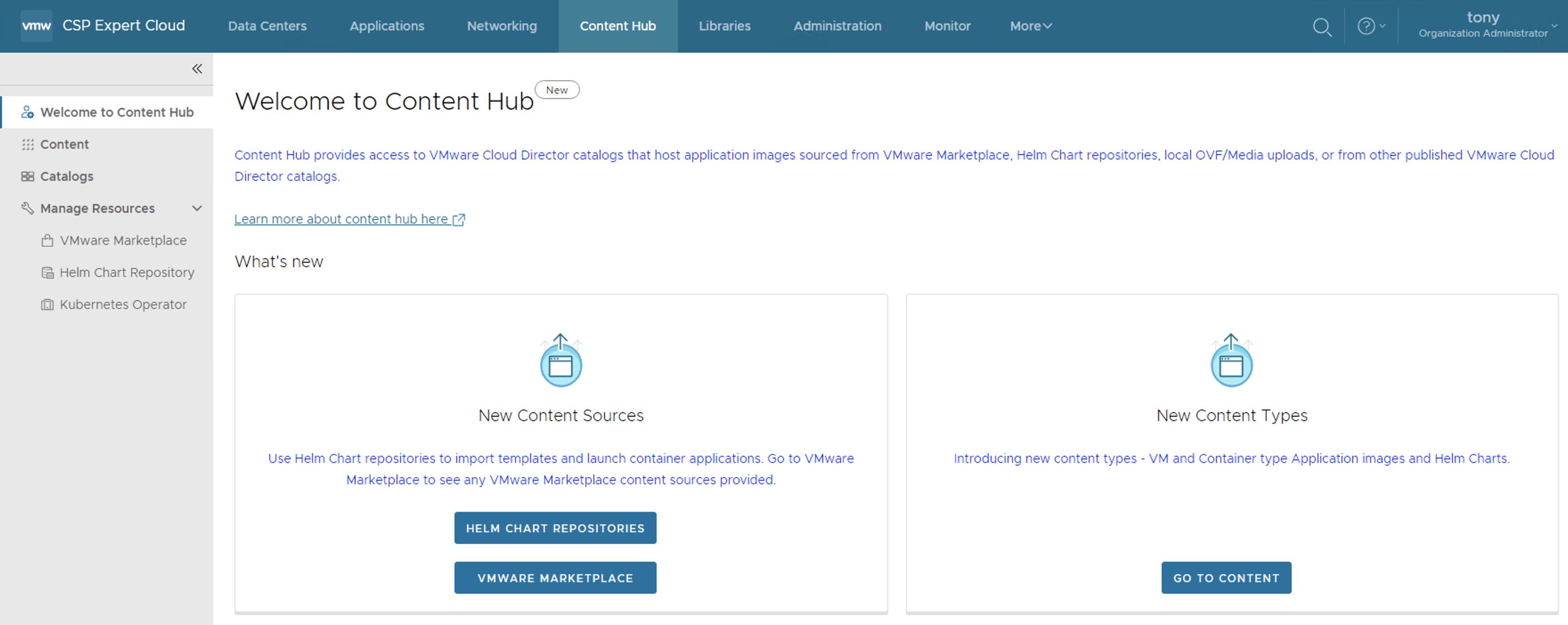
    Content Hub, introduced in VMware Cloud Director 10.5, serves as a convenient tool that unifies the interface for accessing both VM and container-based content. This feature seamlessly integrates external content sources, such as VMware Marketplace and Helmchart Repositories, into the VMware Cloud Director environment.

    By incorporating external sources, content can be seamlessly brought into the catalogs of VMware Cloud Director, ensuring its immediate availability for users. With the integration of Content Hub, VMware Cloud Director introduces an interface oriented towards applications, enabling users to effortlessly visualize and retrieve catalog content, thus elevating the overall content management experience.

    As a result of these enhancements, catalog items are presented as “Application Images,” highlighting crucial application information like the application’s name, version, logo, screenshots, and other pertinent details necessary for the consumption of the application

    Integration with VMware Marketplace

    To integrate Marketplace with VMware Cloud Director, a Cloud Provider needs to create a Marketplace Connection and then share it with one or more tenant organisations. Here is the procedure:

    • Cloud Provider must be logged in as a system administrator.
    • Cloud Provider must have access to VMware Marketplace and there generated an API token. (see Generate API Tokens in the VMware Cloud Services Product Documentation)
    • From the left panel, select VMware Marketplace & Click New.
    • The New VMware Marketplace dialog opens, and there enter the following values:

    Integration with Helm Chart Repository

    A Helm chart repository is a named resource that stores all the information required to establish a connection with a Helm chart repository, allows users to browse contents from a remote repository, and imports applications from the repository.

    Cloud Providers and tenants both can create Helm chart repository content connections. Tenants need special RIGHTs that providers can assign to specific tenants based on requirements.

    • From the left panel, select Helm Chart Repository & Click New.
    • The New Helm Chart Repository dialog opens, and there enter the following values:

    • Password-protected Helm chart repositories are also supported. 
    • You can create multiple Helm chart repository resources in VMware Cloud Director.

    Share a VMware Marketplace/Helm Chart Repository Resource with tenants

    As a service provider administrator, you can share the configured VMware Marketplace resources with other tenant organizations.

    • Inside VMware Marketplace/Helm Chat Repository, on the left of the name of the connection that you want to share, click the vertical ellipsis and select Share.
    • Share the resource.
    • Select the tenant organizations you want to share the resource with.
    • You can set the individual access level for the respective tenant organization only as Read Only.
    • Click Save.

    NOTE: Since vCD does a DB caching of the helm chart repository items in vCD DB, you can click on Sync which will ensure the latest from the remote repository is cached in vCD DB.

    Roles Required

    A new set of User Roles has been introduced to facilitate users in accessing and managing the Content Hub. Assigning the appropriate user roles to individuals within the organization to grant them access and utilize the Content Hub feature effectively is crucial.

    Right Bundles: A Rights Bundle is a collection of rights for the tenant organization and A Rights Bundle defines what a tenant organization has access to. Rights Bundles are always defined globally, and they can be applied to zero or more tenants.

    Roles: A Role is a collection of rights for a user. A Role defines what an individual user has access to. Roles can either be tenant-specific–defined within a single organization and only visible to that organization, or global–defined globally and applied to zero or more tenants. 

    Putting all the pieces together looks something like this:

    Following are the new RIGHTs introduced to manage CatalogContentSource entities:

    Apply the Above Rights for organizations as well as the user, so that they have enough rights to add and deploy applications.

    Content Hub Operator for Kubernetes Container Service Extention

    To perform this operation, First, you need full control of the Kubernetes cluster, where you are deploying the container applications, and additionally the following VMware Cloud Director rights:

    You must install a Kubernetes operator to allow tenant users to deploy container applications from external content sources. From the top navigation bar, select Content Hub, from the left panel, select Kubernetes Operator, and on the Kubernetes Operator page, select the Kubernetes cluster on which you want to install the Kubernetes operator, and click Install Operator.

    The Install operator on cluster-name dialog opens, on this page Configure the source location of the Kubernetes operator package.

    Select the type of source location for the Kubernetes operator package. VMware Registry location with anonymous access is selected by default.

    (Optional) To configure a custom registry, first, you must clone the Content Hub Kubernetes operator package from the VMware container registry to your custom registry. The Content Hub Kubernetes operator package is in Carvel format and you must use the Carvel imgpkg tool for cloning the package.

    Click Install Operator.

    After a Few minutes it shows “Not Reachable”

    And then finally it turns to “ready”, basically After the installation of the operator completes successfully, the system creates two namespaces under the Kubernetes cluster. In the first namespace, “vcd-contenthub-system”, the Content Hub Operator manager is installed. The second namespace, “vcd-contenthub-workloads”, is empty. This namespace is used to deploy container applications at a later stage.

    Catalog Versioning

    In the previous version of VMware Cloud Director, there was no concept of versioning in catalogs. For instance, when a user imports multiple versions of the same application from external sources into the catalog, each version of the VM or container will be stored and represented (listed) as an individual resource, but from VMware Cloud Director 10.5 onwards, a Virtual Machine application or Container application that was imported with multiple versions either at the same time or at different intervals, Content Hub is capable of managing and structure the versioning of that resource.

    Let’s Deploy a Container Application

    Upon launching an application image that has multiple versions, you will be prompted to choose the specific version of the image you wish to deploy.

    If the Container application is launched, then the Container Application launcher window will open and then you need to provide the application Name, select the version to deploy and select the TKG Cluster.

    (Optional) To customize the application parameters, click Show Advanced Settings.

    Click Launch Application.

    The system deploys the container application. After the deploy operation completes, on the card for the application, the status appears as Deployed. VMware Cloud Director deploys the container application as a Helm release under the vcd-contenthub-workloads namespace to the Kubernetes cluster.

    Either clicking on Application Name or DETAILS, it takes user to details of the application, like Status, Pods Status, Access URLs etc..

    User can use the access URL details to access the application easily

    Deploy an Stateful Container Application

    In this section we will deploy Casandra database using Cloud Director Content Hub, process is simple as we followed in above section, once deployed the application, check the details, here details are different like no access URL, it also created required Persistent Volumes automatically

    it also give visibility to Stateful Set and its status, secrets if any, services and its type as well as other resources. this allow end user to not to check in K8s clusters vs this info is available in vCD GUI.

    Deploy an Virtual Machine Application

    A vApp consists of one or more virtual machines that communicate over a network and use resources and services in a deployed environment. A vApp can contain multiple virtual machines.If you have access to a catalog, you can use the vApp templates in the catalog to create vApps.

    A vApp template can be based on an OVF file with properties for customizing the virtual machines of the vApp. The vApp inherits these properties. If any of those properties are user-configurable, you can specify their values.

    Enter a name and, optionally, a description for the vApp.

    Enter a runtime lease and a storage lease for the vApp, and click Next.

    From the Storage Policy drop-down menu, select a storage policy for each of the virtual machines in the vApp, and click Next.

    If the placement policies and the sizing policies for the virtual machines in the vApp are configurable, select a policy for each virtual machine from the drop-down menu.

    If the hardware properties of the virtual machines in the vApp are configurable, customize the size of the virtual machine hard disks and click Next.

    If the networking properties of the virtual machines in the vApp are configurable, customize them and click Next.

    On the Configure Networking page, select the networks to which you want each virtual machine to connect.

    (Optional) Select the check box to switch to the advanced networking workflow and configure additional network settings for the virtual machines in the vApp.

    Review the vApp settings and click Finish.

    You can see under Applications -> Virtual Applications, VM is getting deployed.

    With Content Hub feature provide can offers centralized content management for application images, vApp and VM templates, and media. VMware Cloud Director now has full control over the deployed and listed images, storing all pertinent information in its database. Unlike the application images imported from App Launchpad, where VMware Cloud Director only listed the imported images and App Launchpad stored all the details and information in its own database as well as It offers ease of use since you won’t have to set up and configure App Launchpad, which would otherwise be an additional task.

  • Harness the Power of Cloud Director Data Solutions: Offer DBaaS using VMware SQL with MySQL

    Harness the Power of Cloud Director Data Solutions: Offer DBaaS using VMware SQL with MySQL

    In the ever-evolving landscape of cloud technology, Cloud Service Providers (CSPs) play a crucial role in helping businesses unlock the potential of their data. Database as a Service (DBaaS) offerings have become essential tools for organizations looking to streamline their data management processes. This article will explore how our CSP is revolutionizing DBaaS with Cloud Director Data Solutions, powered by VMware SQL with MySQL. Discover how this powerful combination can transform CSP and customers’ data management experience.

    VMware Cloud Director Extension for Data Solutions: An Introduction

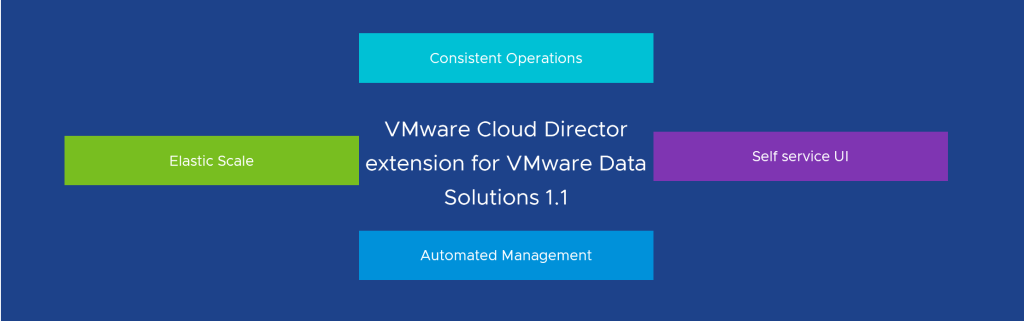
    The VMware Cloud Director Extension for Data Solutions is a game-changing plug-in for the VMware Cloud Director. By incorporating data and messaging services into the VMware Cloud Director portfolio, it enables cloud providers and their tenants to access and manage services such as VMware SQL with MySQL, VMware SQL with PostgreSQL, and the efficient messaging system, RabbitMQ.

    The extension operates in conjunction with Container Service Extension 4.0 or later, facilitating the publication of popular data and messaging services to tenants. These services are deployed in a Tanzu Kubernetes Grid Cluster, which is managed by Container Service Extension 4.0 or later. This powerful combination simplifies the process of deploying and managing these services, while also offering data analytics and monitoring through Grafana and Prometheus.

    How the VMware Cloud Director Extension for Data Solutions Functions

    The VMware Cloud Director Extension for Data Solutions works hand-in-hand with the Container Service Extension 4.x to provide cloud providers with the ability to publish data and messaging services to their tenants. In turn, tenants can utilize these services for building new applications or maintaining existing ones.

    Services are deployed within a Tanzu Kubernetes Grid Cluster, which is managed by the Container Service Extension 4.0 or later. This plays a crucial role in the deployment of services, with a service operator installed in a selected tenant Tanzu Kubernetes Cluster responsible for managing the entire lifecycle of a service, from inception to dissolution.

    To better understand the architecture of the VMware Cloud Director Extension for Data Solutions, consider the high-level diagram provided below.

    Use Cases for the VMware Cloud Director Extension for Data Solutions

    Tenants can utilize the VMware Cloud Director Extension for Data Solutions for various purposes, such as creating database and messaging services at scale. Once these services are available in a tenant organization, authorized tenant users can create, upgrade, or delete PostgreSQL, MySQL, or RabbitMQ services. Advanced settings, such as enabling High Availability for VMware SQL with MySQL and VMware SQL with PostgreSQL, can be applied during the creation of a service.

    In addition to creating database and messaging services, tenants can effortlessly manage their upgrades. When a newer version becomes available, the VMware Cloud Director Extension for Data Solutions interface will notify the user and prompt them to take action. Tenant administrators or users can then upgrade the chosen service with a single click, safeguarding the service against vulnerabilities and ensuring its stability.

    Tenant self-service UI for the lifecycle management of VMware SQL with MySQL

    Step:1 – Installing VMware Cloud Director Data Solutions operator

    To run VMware SQL with MySQL in a Kubernetes cluster using the VMware Cloud Director extension for Data Solutions, you must install a VMware Cloud Director extension for the Data Solutions operator to a Kubernetes cluster. The VMware Cloud Director Data Solutions operator (DSO) is a backend service running within each tenant Kubernetes cluster. DSO manages the lifecycle of user resources in Kubernetes clusters upon user requests, sent through VMware Cloud Director Resource Defined Entities. The resources include both data solution operators like VMware RabbitMQ operators for Kubernetes and data solution instances like VMware RabbitMQ for Kubernetes. It deploys, upgrades, and updates various data solutions in Kubernetes clusters on behalf of the user.

    • Log in to VMware Cloud Director extension for Data Solutions from VMware Cloud Director.
    • Click Settings > Kubernetes Clusters.
    • Select the Kubernetes cluster where you want to run VMware Cloud Director extension for Data Solutions, and click Install Operator.
    • It takes a few minutes for the Operator Status of the cluster to change to Active.

    Step:2 – Installing VMware SQL with MySQL

    • Log in to VMware Cloud Director extension for Data Solutions from VMware Cloud Director.
    • Click Instances > New Instance.
    • Enter the necessary details.
      • Enter the instance name.
      • Select the solution, for which you want to create an instance.
      • Select the Kubernetes cluster for this instance. 
      • you must enter only a default passwordSelect a sizing template for this instance.
    • To customize more details click Show Advanced Settings
    • To connect to a MySQL instance from outside of your Kubernetes cluster, we must configure the Kubernetes service for the instance to be of type “Load Balancer”. Select “Expose Service by Load Balancer”
    • Click Create.
    • You can also track the progress of the deployment by running:
    #kubectl get pods -n vcd-ds-workloads
    • After a few minutes, you should see MySQL status is “Running” in vCD GUI as well
    • You can continue to see progress in the vCD taskbar as well as the Monitor section of vCD GUI, it is automatically creating required persistent volumes as well as Network services like Load Balancer and NAT rules
    • Kubernetes will request and Cloud Director then allocate an external IP address (load balancer IP) to the service, which we can use to connect to the MySQL service from outside the cluster. You can view the Load Balancer IP by running:
    #kubectl get svc -A
    • Take note of the External IP, which in this case is 172.16.2.6, we will use this IP to connect to the MySQL cluster from outside

    Step:3 – Connecting to VMware SQL with MySQL

    To connect to a MySQL service using Workbench, you can follow these steps:

    • Download and install MySQL Workbench from the official MySQL website if you haven’t already.
    • Launch MySQL Workbench on your computer.
    • In the Workbench home screen, click on the “+” icon next to “MySQL Connections” to create a new connection.
    • In the “Setup New Connection” dialog, enter a connection name of your choice.
    • Configure the following settings:
    1-Connection Method: Standard TCP/IP
    2-MySQL Hostname: External IP address of the MySQL server.in this case is 172.16.2.6
    3-MySQL Server Port: Enter the port number(default is 3306).
    4-Username: Enter the MySQL username as “mysqlappuser”
    5-Password: Enter the MySQL password as you entered while deploying MySQL
    
    • Click on the “Test Connection” button to check if the connection is successful. If the test is successful, you should see a success message.
    • Click on the “OK” button to save the connection settings.

    After following these steps, you should be connected to your MySQL service using MySQL Workbench. You can then use the Workbench interface to view this newly deployed instance, run queries, and perform various read-only database-related tasks, because:

    When Tenant creates a MySQL deployment through VMware Cloud Director for Data Solutions extension, the MySQL instance gets a default DB user named “mysqlappuser”, This “mysqlappuser” user’s privilege is limited to the default DB instance. “mysqlappuser” user does not have enough permission to create a database, we need to create a new user which has enough permissions to create a database.

    Step:4 – Enable a full-privileged DB user for your MySQL instance provisioned by the VMware Cloud Director Extension for Data Solutions

    MySQL by default has a built-in “root” user with administrator privilege in every MySQL deployment, but it doesn’t support external access. We will use this user to create another full-privileged DB user.

    • Find DB root user’s password by using below commands:
    # kubectl get secret -n vcd-ds-workloads
    #kubectl get secret mysqldb01-credentials -n  vcd-ds-workloads -o jsonpath='{.data}'
    
    • Take note of “rootPassword” from the output of the above command and copy the full encrypted password, which in this case starts with “RE1n**********”
    • Decode the above “rootPassword” using below command
    # echo "RE1nem90TmltZ2laQWdsZC1oqM0VGRw==" | base64 –decode
    • The output of the above command will be the root password, use this password to log in.
    • Enter the primary (writable) pod of your MySQL deployment by command: (Refer to this Link to identify Writable Pod )
    # kubectl exec -it mysqldb01-2 -n vcd-ds-workloads -c mysql – bash
    • Now run the below command to connect to the MySQL instance:
    1 - Login to SQL 
          #mysql -u root -p$ADMIN_PASSWORD -h 127.0.0.1 -P 3306
    2 - Enter decoded password, once you successfully connected to the MySQL
    3 - Create a local MySQL user using:
          #CREATE USER 'user01'@'%' IDENTIFIED BY 'password';
          #GRANT ALL PRIVILEGES ON * . * TO 'user01'@'%';
    • That’s it, now we can connect to this SQL Instance and can create a new database as you can see below screenshot

    NOTE: Thanks to the writer of this blog, https://realpars.com/mysql/, I am using this database for this blog article.

    In Summary, by leveraging VMware Cloud Director Extension for Data Solutions, CSPs can unlock the power of DBaaS using VMware SQL with MySQL, offering customers a comprehensive and efficient platform for their data management needs. With simplified deployment and management, seamless scalability, enhanced performance optimization, high availability, and robust security and compliance features, CSPs can provide businesses with a reliable and scalable DBaaS solution. Embrace the potential of DBaaS with VMware Cloud Director Extension for Data Solutions and VMware SQL with MySQL, and empower your customers with streamlined data management capabilities in the cloud.

  • VMware Cloud Director Charge Back Explained

    VMware Chargeback not only enables metering and chargeback capabilities, but also provides visibility into infrastructure usage through performance and capacity dashboards for the Cloiud Providers as well as tenants.

    To help Cloud Providers and tenants realise more value for every dollar they spend on infrastructure (ROI) (and in turn provide similar value to their tenants), our focus is to not only expand the coverage of services that can be priced in VMware Chargeback, but also to provide visibility into the cost of infrastructure to providers, and billing summary to organizations, clearly highlighting the cost incurred by various business units. but before we dive in further to know what’s new with this release, please note:

    • vRealize Operations Tenant App is now rebranded to VMware Chargeback.
    • VMware Chargeback is also now available as a SaaS offering, The Software-as-a-Service (SaaS) offering will be available as early access, with limited availability, with the purchase or trial of the VMware Cloud Director™ service. See, Announcing VMware Chargeback for Managed Service Providers Blog.

    Creation of pricing policy based on chargeback strategy

    Provider administrator can create one or more pricing policies based on how they want to chargeback their tenants. Based on the vCloud Director allocation models, each pricing policy is of the type, Allocation pool, Reservation pool, or Pay-As-You-Go

    NOTE – The pricing policies apply to VMs at a minimum granularity of five minutes. The VMs that are created and deleted within the short span of five minutes will still be charged.

    CPU Rate

    Provider can charge the CPU rate based on GHz or vCPU Counts

    • Charge Period which indicates the frequency of charging and values are: Hourly, Daily Monthly
    • Charge Based on Power State indicates the pricing model based on which the charges are applied and values are: Always, Only when powered on, Powered on at least once
    • Default Base Rate any base rate that provider want to charge
    • Add Slab providers can optionally charge different rates depending on the number of vCPUs used
    • Fixed Cost Fixed costs do not depend on the units of charging

    Memory Rate

    • Charge Period which indicates the frequency of charging and values are: Hourly, Daily Monthly
    • Charge Based on indicates the pricing model based on which the charge is applied, values are: Usage, Allocation and Maximum from usage and allocation
    • Charge Based on Power State indicates the pricing model based on which the charges are applied and values are: Always, Only when powered on, Powered on at least once
    • Default Base Rate any base rate that provider want to charge
    • Add Slab providers can optionally charge different rates depending on the memory allocated
    • Fixed Cost Fixed costs do not depend on the units of charging

    Storage Rate

    You can charge for storage either based on storage policies or independent of it.

    • This way of setting rates will be deprecated in the future release and it is advisable to instead use the Storage Policy option.
    • Select the Storage Policy Name from the drop-down menu.
    • Charge Period indicates the frequency of charging and values are: Hourly, Daily Monthly
    • Charge Based on indicates the pricing model based on which the charge is applied. You can charge for used storage or configured storage of the VMs
    • Charge Based on Power State This decides if the charge should be applied based on the power state of the VM and values are: Always, Only when powered on, Powered on at least once
    • Add Slab you can optionally charge different rates depending on the storage allocated

    Network Rate

    Enter the External Network Transmit and External Network Receive rates.

    Note: If your network is backed by NSX-T, you will be charged only for the network data transmit and network data receive.

    • Network Transmit Rate select the Change Period and enter the Default Base Rate as well as using slabs, you can optionally charge different rates depending on the network data consumed
    • Network Receive Rate select the Change Period and enter the Default Base Rate. as well as using slabs, you can optionally charge different rates depending on the network data consumed. Enter valid numbers for Base Rate Slab and click Add Slab.

    Advanced Network Rate

    Under Edge Gateway Size, enter the base rates for the corresponding edge gateway sizes

    • Charge Period indicates the frequency of charging and values are: Hourly, Daily Monthly
    • Enter the Base Rate

    Guest OS Rate

    Use the Guest OS Rate to charge differently for different operating systems

    • Enter the Guest OS Name
    • Charge Period indicates the frequency of charging and values are: Hourly, Daily Monthly
    • Charge Based on Power State This decides if the charge should be applied based on the power state of the VM and values are: Always, Only when powered on, Powered on at least once
    • Enter the Base Rate

    Cloud Director Availability

    Cloud Director Availability is to set pricing for replications created from Cloud Director Availability

    • Replication SLA Profile – enter a replication policy name
    • Charge Period indicates the frequency of charging and values are: Hourly, Daily Monthly
    • Enter the Base Rate

    You can also charge for the storage consumed by replication objects in the Storage Usage Charge section.This is used to set additional pricing for storage used by Cloud Director Availability replications in Cloud Director. Please note that the storage usage defined in this tab will be added additionally to the Storage Policy Base Rate

    vCenter Tag Rate

    This section is used for Any additional charges to be applied on the VMs based on their discovered Tags from vCenter. (Typical examples are Antivirus=true, SpecialSupport=true etc)

    • Enter the Tag Category and Tag Value
    • Charge based on Fixed Rate or
    • Charge based on Alternate Pricing Policy – Select the appropriate Pricing Policy
    • Charge Period indicates the frequency of charging and values are: Hourly, Daily Monthly
    • Charge Based on Power State This decides if the charge should be applied based on the power state of the VM and values are: Always, Only when powered on, Powered on at least once
    • Enter the Base Rate

    VCD Metadata Rate

    Use the VCD Metadata Rate to charge differently for different metadata set on vApps

    NOTE- Metadata based prices are available in bills only if Enable Metadata option is enabled in vRealize Operations Management Pack for VMware Cloud Director.

    • Enter the Tag Category and Tag Value
    • Charge based on Fixed Rate or
    • Charge based on Alternate Pricing Policy – Select the appropriate Pricing Policy
    • Charge Period indicates the frequency of charging and values are: Hourly, Daily Monthly
    • Charge Based on Power State This decides if the charge should be applied based on the power state of the VM and values are: Always, Only when powered on, Powered on at least once
    • Enter the Base Rate

    One Time Fixed Cost

    One time fixed cost used to charge for One time incidental charges on Virtual machines, such as creation/Setup charges, or charges for one off incidents like installation of a patch. These costs do not repeat on a recurring basis.

    For values follow VCD METADATA and vCenter Tag section.

    Rate Factors

    Rate factors are used to either bump up or discount the prices either against individual resources consumed by the Virtual Machines, or whole charges against the Virtual Machine. Some examples are:

    • Increase CPU rate by 20% (Factor 1.2) for all VMs tagged with CPUOptimized=true
    • Discount overall charge on VM by 50% (Factor 0.5) for all Vms tagged with PromotionalVM=True
    • VCD Metadata
      • enter the Tag Key and Tag Value
        • Change the price of Total, vCPU, Memory and Storage
        • By applying a factor of – increase or decrease the price by entering a valid number
    • vCenter Tag
      • enter the Tag Key and Tag Value
        • Change the price of Total, vCPU, Memory and Storage
        • By applying a factor of – increase or decrease the price by entering a valid number

    Tanzu Kubernetes Clusters

    This section will be used to charge for Tanzu K8s clusters and objects.

    • Cluster Fixed Cost
    • Charge Period indicates the frequency of charging and values are: Hourly, Daily Monthly
      • Fixed Cost Fixed costs do not depend on the units of charging
    • Cluster CPU Rate
      • Charge Period indicates the frequency of charging and values are: Hourly, Daily Monthly
      • Charge Based on this decides if the charge should be applied based on Usage or Allocation
      • Default Base Rate(per ghz)
    • Cluster Memory Rate
      • Charge Period indicates the frequency of charging and values are: Hourly, Daily Monthly
      • Charge Based on this decides if the charge should be applied based on Usage or Allocation
      • Default Base Rate(per gb)

    Additional Fixed Cost

    You can use Additional Fixed Cost section to charge at the Org-VDC level. You can use this for charges such as overall tax, overall discounts, and so on. The charges can be applied to selective Org-VDCs based on Org-VDC metadata.

    • Fixed Cost
      • Charge Period indicates the frequency of charging and values are: Hourly, Daily Monthly
      • Fixed Cost
    • VCD Metadata – enter the Tag Key and Tag Value
    • VCD Metadata One Time – enter the Tag Key and Tag Value

    Apply Policy

    Cloud Director Charge Back provides flexibility to the Service Providers to map the created pricing policies with specific organization vDC. By doing this, the service provider can holistically define how each of their customers can be charged based on resource types.

    Bills

    Every tenant/customer of service provider can see/review their bills using the Cloud Director Charge Back app. Service Provider administrator can generate bills for a tenant by selecting a specific resource and a pricing policy that must be applied for a defined period and can also log in to review the bill details.

    This completes the feature demonstration available with Cloud Director Charge back. Go ahead and deploy and add native charge back power to your Cloud. 

  • NFS DataStore on VMware Cloud on AWS using Amazon FSx for NetApp


    Amazon FSx for NetApp ONTAP integration with VMware Cloud on AWS is an AWS-managed external NFS datastore built on NetApp’s ONTAP file system that can be attached to a cluster in your SDDC. It provides customers with flexible, high-performance virtualized storage infrastructure that scales independently of compute resources.

    PROCESS

    • Make sure SDDC has been deployed on VMware Cloud on AWS with version 1.20
    • The SDDC is added to an SDDC Group. While creating the SDDC Group, a VMware Managed Transit Gateway (vTGW) is automatically deployed and configured
    • A Multi-AZ file system powered by Amazon FSx for NetApp ONTAP is deployed across two AWS Availability Zones (AZs). (You can also deploy in single AZ but not recommended for production)

    DEPLOY VMWARE MANAGED TRANSIT GATEWAY

    To use FSx for ONTAP as an external datastore, an SDDC must be a member of an SDDC group so that it can use the group’s vTGW and to configure you must be logged into the VMC console as a user with a VMC service role of Administrator and follow below steps:

    • Log in to the VMC Console and go on the Inventory page, click SDDC Groups
    • On the SDDC Groups tab, click ACTIONS and select Create SDDC Group
    • Give the group a Name and optional Description, then click NEXT
    • On the Membership grid, select the SDDCs to include as group members.The grid displays a list of all SDDCs in your organization. To qualify for membership in the group, an SDDC must meet several criteria:
      • It must be at SDDC version 1.11 or later. Members of a multi-region group must be at SDDC version 1.15 or later.
      • Its management network CIDR block cannot overlap the management CIDR block of any other group member.
      • It cannot be a member of another SDDC Group.
      When you have finished selecting members, click NEXT. You can edit the group later to add or remove members.
    • Acknowledge that you understand and take responsibility for the costs you incur when you create an SDDC group, then click CREATE GROUP to create the SDDC Group and its VMware Transit Connect network.

    ATTACH VPC TO VMWARE MANAGED TRANSIT GATEWAY

    After the SDDC Group is created, it shows up in your list of SDDC Groups. Select the SDDC Group, and then go to the External VPC tab and click on ADD ACCOUNT button, then provide the AWS account that will be used to provision the FSx file system, and then click Add.

    Now it’s time for you to go back to the AWS console and sign in to the same AWS account where you will create Amazon FSx file system. Here navigate to the Resource Access Manager service page and

    click on the Accept resource share button.

    Next, we need to attach VMC Transit Gateway to the FSX VPC, for that you need to go to:

    ATTACH VMWARE MANAGED TRANSIT GATEWAY TO VPC

    • Open the Amazon VPC console and navigate to Transit Gateway Attachments.
    • Choose Create transit gateway attachment
    • For Name tag, optionally enter a name for the transit gateway attachment.
    • For Transit gateway ID, choose the transit gateway for the attachment, make sure you choose a transit gateway that was shared with you.
    • For Attachment type, choose VPC.
    • For VPC ID, choose the VPC to attach to the transit gateway.This VPC must have at least one subnet associated with it.
    • For Subnet IDs, select one subnet for each Availability Zone to be used by the transit gateway to route traffic. You must select at least one subnet. You can select only one subnet per Availability Zone.
    • Choose Create transit gateway attachment.

    Accept the Transit Gateway attachment as follows:

    • Navigating back to the SDDC Group, External VPC tab, select the AWS account ID used for creating your FSx NetApp ONTAP, and click Accept. This process takes some time..
    • Next, you need to add the routes so that the SDDC can see the FSx file system. This is done on the same External VPC tab, where you will find a table with the VPC. In that table, there is a button called Add Routes. In the Add Route section, add the CIDR of your VPC where the FSX will be deployed.

    In the AWS console, create the route back to the SDDC by locating VPC on the VPC service page and navigating to the Route Table as seen below.

    also ensure that you have the correct inbound rules for the SDDC Group CIDR to allow the inbound rules for SDDC Group CIDR. it this case i am using entire SDDC CIDR, Further to this Security Group, the ENI Security Group also needs the NFS port ranges adding as inbound and outbound rules to allow communication between VMware Cloud on AWS and the FSx service.

    Deploy FSx for NetApp ONTAP file system in your AWS account

    Next step is to create an FSx for NetApp ONTAP file system in your AWS account. To connect FSx to VMware cloud on AWS SDDC, we have two options:

    • Either create a new Amazon VPC under the same connected AWS account and connect it using VMware Transit Connect.
    • or Create a new AWS account in the same region as well as VPC, connect it using VMware Transit Connect.

    In this blog, i am deploying in the same connected VPC and for it to deploy, Go to Amazon FSx service page, click on Create File System and on the Select file system type page, select Amazon FSx for NetApp ONTAP,

    On Next page, select the Standard create method and enter require details like:

    • Select Deployment type (Multi-AZ) and Storage capacity
    • Select correct VPC, Security group and Subnet

    After the file system is created, check the NFS IP address under the Storage virtual machines tab. The NFS IP address is the floating IP that is used to manage access between file system nodes, and this IP we will use to configuring in VMware Transit Connect to allow access volume from SDDC.

    we are done with creating the FSx for NetApp ONTAP file system.

    MOUNT NFS EXTERNAL STORAGE TO SDDC Cluster

    Now it’s time for you to go back to the VMware Cloud on AWS console and open the Storage tab of your SDDC. Click ATTACH DATASTORE and fill in the required values.

    • Select a cluster. Cluster-1 is preselected if there are no other clusters.
    • Choose Attach a new datastore
    • The NFS IP address shown in the Endpoints section of the FSx Storage Virtual Machine tab. Click VALIDATE to validate the address and retrieve the list of mount points (NFS exports) from the server.

    • Pick one from the list of mount points exported by the server at the NFS server address. Each mount point must be added as a separate datastore
    • AWS FSx ONTAP
    • Give the datastore a name. Datastore names must be unique within an SDDC.
      • Click on ATTACH DATASTORE

    VMware Cloud on AWS supports external storage starting with SDDC version 1.20. To request an upgrade to an existing SDDC, please contact VMware support or notify your Customer Success Manager.

  • Persistent Volumes for Tanzu on VMware Cloud on AWS using Amazon FSx for NetApp ONTAP

    Amazon FSx for NetApp ONTAP provides fully managed shared storage in the AWS Cloud with the popular data access and management capabilities of ONTAP and this blog post we are going to use these volumes mount as Persistent Volumes on Tanzu Kubernetes Clusters running on VMware Cloud on AWS

    With Amazon FSx for NetApp ONTAP, you pay only for the resources you use. There are no minimum fees or set-up charges. There are five Amazon FSx for NetApp ONTAP components to consider when storing and managing your data: SSD storage, SSD IOPS, capacity pool usage, throughput capacity, and backups.

    The Amazon FSx console has two options for creating a file system – Quick create option and Standard create option. To rapidly and easily create an Amazon FSx for NetApp ONTAP file system with the service recommended configuration, I use the Quick create option.

    The Quick create option creates a file system with a single storage virtual machine (SVM) and one volume. The Quick create option configures this file system to allow data access from Linux instances over the Network File System (NFS) protocol.

    In the Quick configuration section, for File system name – optional, enter a name for your file system.

    For Deployment type choose Multi-AZ or Single-AZ.

    • Multi-AZ file systems replicate your data and support failover across multiple Availablity Zones in the same AWS Region.
    • Single-AZ file systems replicate your data and offer automatic failover within a single Availability Zone, for this post i am creating in Single AZ
    • SSD storage capacity, specify the storage capacity of your file system, in gibibytes (GiBs). Enter any whole number in the range of 1,024–196,608.
    • For Virtual Private Cloud (VPC), choose the Amazon VPC that is associate with your VMware Cloud on AWS SDDC.

    Review the file system configuration shown on the Create ONTAP file system page. For your reference, note which file system settings you can modify after the file system is created.

    Choose Create file system.

    Quick create creates a file system with one SVM (named fsx) and one volume (named vol1). The volume has a junction path of /vol1 and a capacity pool tiering policy of Auto.

    For us to use this SVM, we need to get the IP address of SVM for NFS , Click on SVM ID and take a note of this IP, we will use this IP in our NFS configurations for Tanzu.

    Kubernetes NFS-Client Provisioner

    NFS subdir external provisioner is an automatic provisioner that use your existing and already configured NFS server to support dynamic provisioning of Kubernetes Persistent Volumes via Persistent Volume Claims. Persistent volumes are provisioned as ${namespace}-${pvcName}-${pvName}.

    More Details – Explained here in detail https://github.com/kubernetes-sigs/nfs-subdir-external-provisioner 

    I am deploying this on my Tanzu Kubernetes cluster which is deployed on VMware Cloud on AWS.

    • Add the helm repo –
    #helm repo add nfs-subdir-external-provisioner https://kubernetes-sigs.github.io/nfs-subdir-external-provisioner/
    • Install using as below:
    #helm install nfs-subdir-external-provisioner nfs-subdir-external-provisioner/nfs-subdir-external-provisioner \
        --set nfs.server=<IP address of Service> \
        --set nfs.path=/<Volume Name>
    #My command will be like this#
    #helm install nfs-subdir-external-provisioner nfs-subdir-external-provisioner/nfs-subdir-external-provisioner \
        --set nfs.server=172.31.1.234 \
        --set nfs.path=/vol1

    Post installation of chart, you can check the status of Pod, it is not in running state then describe and see where it stuck

    Finally, Test Your Environment!

    Now we’ll test your NFS subdir external provisioner by creating a persistent volume claim and a pod that writes a test file to the volume. This will make sure that the provisioner is provisioning and that the Amazon FSx for NetApp ONTAP service is reachable and writable.

    As you can see deployed application created an PV and PVC successfully on Amazon FSx for NetApp ONTAP

    Describe the Persistent Volume to see the source of it, as you can see below it is created on NFS running on SVM having IP – 172.31.1.234

    This is the power of VMware Cloud on AWS and AWS native services, customers can use any AWS native service without worrying about egress charges as well as security as everything is being configured and accessed over the private connections.