Category: NSX

  • Deploy Cloud Director orgVDC Edge API Way

    Recently working with a provider who was needed some guidance on deploying orgVDC Edge API way so that their developer can use API way to automate customer orgVDC edge deployment for tenants. so here are are steps which i shared with him , sharing here too..lets get started..

    First thing is we need to authenticate to Cloud Director, in this example, my credentials is the equivalent of cloud director System Administrator and I am connecting to provider session using Open API cloud director API and choose Authorization as basic with provider credential.

    let’s do the post API call for getting an API session token.

    POST - https://<vcdurl>/cloudapi/1.0.0/sessions/provider

    Once you have authenticated, click on the Headers tab and you will see your Authorization key for this session. the Key “X-VMWARE-VCLOUD-ACCESS-TOKEN”, we will use this key to authenticate further API sessions using “Bearer” token

    Next API Call is to get the current Edge gateways deployed by using above “Bearer Token”. this for me was the easiest way to reference required objects for next API call. (i deployed a sample edge in Org to get references)

    Result of above API call , will give you lots of information that will be used in our next API call to create an Edge:

    Now Lets create orgVDC edge by creating body for POST API Call, From above result take few mandatory filed values like:

    • uplinkID
    • Subnets/gateway/IP address will be as per your environment
    • orgVDC and Its ID
    • OwnerRef , name and its id
    • OrgRef, name and its id

    Here is reference payload of my API call for orgVDCEdge creation

    {
                "name": "avnish2",
                "description": "test avnish2",
                "edgeGatewayUplinks": [
                    {
                        "uplinkId": "urn:vcloud:network:e0d2cd31-3034-489c-b318-cd36efe89729",
                        "subnets": {
                            "values": [
                                {
                                    "gateway": "172.16.43.1",
                                    "prefixLength": 24,
                                    "ipRanges": {
                                        "values": [
                                            {
                                              "startAddress": "172.16.43.41",
                                              "endAddress": "172.16.43.50"
                                            }
                                        ]
                                    },
                                    "enabled": true,
                                    "primaryIp": "172.16.43.2"
                                }
                            ]
                        },
                        "connected": true,
                        "quickAddAllocatedIpCount": null,
                        "dedicated": false,
                        "vrfLiteBacked": false
                    }
                ],
                "orgVdc": {
                    "name": "avnish-ovdc",
                    "id": "urn:vcloud:vdc:45202398-51ee-4887-886a-1eecb9fdaa1c"
                },
                "ownerRef": {
                    "name": "avnish-ovdc",
                    "id": "urn:vcloud:vdc:45202398-51ee-4887-886a-1eecb9fdaa1c"
                },
                "orgRef": {
                    "name": "Avnish",
                    "id": "urn:vcloud:org:ddf6d02f-1552-49ac-8c25-30c36f63d5b6"
                }
    
            }

    Do the Post to https://<vcdip>/cloudapi/1.0.0/edgeGateways

    you should see “accepted” response , which confirms that Cloud Director will deploy OrgVDC edge with the information that you provided in the above post API call.

    Once you got “accepted” response , if you go to Cloud Director , you should see above call should have deployed “OrgVDC Edge” for a specific organisation.

    I hope this helps in case if you want to use API way to provision orgVDC Edge for a tenant.

  • SSL VPN with Cloud Director

    Secure remote access to the cloud services is essential to cloud adoption and use. Cloud Director based cloud allows every tenant to use a dedicated edge gateway, providing a simple and easy-to-use solution that supports IPsec site-to-site virtual private networks (VPNs) backed by VMware NSX-T. Since NSX-T today does not support SSL VPN and this limitation requires providers or tenants to select alternative solutions, including open source or commercial, depending on the desired mix of features and support. Example of such solutions are OpenVPN or Wireguard.

    In this blog post we will deploy openVPN as a tenant admin to allow access cloud resources from Cloud using VPN Client.

    Create a new VDC network

    Lets create a new routed Org VDC Network and we will deploy OpenVPN on this network, you can also deploy it on existing routed network.

    1. In Cloud Director go to Networking Section and Click on New to create a new router Network
    2. Select the appropriate Org VDC
    3. Select Type of Network as “Routed”
    4. Choose appropriate Edge for this routed network association
    5. Give the network an Gateway CIDR
    6. Create a pool of IPs for Network to allocate
    7. check the summary and click finish to create a network a routed netwrok

    Creating NAT Rules

    After creating routed network, go on to Edge gateway and open the edge gateway configuration:

    Create two NAT rules for OpenVPN appliance:

    1. SNAT rule to allow OpenVPN appliance out bound Internet access
      1. OpenVPN Appliance IP to one External IP
    2. DNAT rule to allow OpenVPN appliance Inbound access from Internet
      1. External IP to OpenVPN appliance IP

    You might have to open certain firewall rules to access OpenVPN admin console which depend on from where you are accessing the console.

    NAT for Cloud Director Services

    Since Cloud Director Service is managed service and its architecture is different then cloud providers environment, so for CDS, we need to follow few extra steps as explained below:

    Deploy OpenVPN Appliance

    1. I have downloaded the latest OpenVPN appliance from Here: -https://openvpn.net/downloads/openvpn-as-latest-vmware.ova
    2. I have uploaded in to a catalog , Select from Catalog and Click on Create vAPP

    Provide a Name and Description

    Select the Org VDC

    Edit VM configuration

    This is very important step , make sure you choose:

    1. Switch to the advance networking workflow
    2. Change IP assignment to “Manual
    3. assign a valid IP Manually from the range which we had created during network creation, if you are not putting IP here then on appliance you need to struggle for IP assignment etc..

    Review and finish, This will deploy the OpenVPN appliance, once deployed power on the appliance. Now time to configure the appliance…

    OpenVPN Initial Configuration

    In VMware Cloud Director go to Compute and click on Virtual Machines and open the console of your OpenVPN virtual machine.

    Log in to the VM as the root user and for Password – Click on “Guest OS Customization” and click on Edit

    Copy the password which is in the section “Specify password“, and use this password to login to OpenVPN virtual machine

    After login, you will be prompted to answer few questions:

    Licence Agreement:  as usual , you do not have choice, Enter “yes”

    Will this be the primary Access Server node?: Enter “Yes”

    Please specify the network interface and IP address to be used by the Admin Web UI:  If the guest customizations were applied correctly, this should default to eth0, which should be configured with an IP address on the network you selected during deployment.

    Please specify the port number for the Admin Web UI: Enter your desired port number, or accept the default of 943.

    Please specify the TCP port number for the OpenVPN Daemon: Use default “443”

    Should client traffic be routed by default through VPN?: Choose “No”.

    if you enter “yes”, it will not allow client device from accessing any other networks while the VPN is connected.

    Should client DNS traffic be routed by default through the VPN?: Choose “No” if your above answer is “No”.

    Use local authentication via internal DB? : Enter Yes or No based on your choice of authentication.

    Should private subnets be accessible to clients by default? : Enter “yes” this will enable your cloud networks accessible via the VPN.

    Do you wish to login to the Admin UI as “openvpn”?: Answer “yes” which will create a local user account named as “openvpn” If you answer no, you’ll need to set up a different user name and password.

    Please specify your Activation key: If you’ve purchased a licence, enter the licence key, otherwise leave this blank.

    If using default “openvpn” account, after installing the OpenVPN Access Server for the first time, you are required to set a password for the ā€œopenvpnā€ user at the command line interface with the command “#passwd openvpn” and then use that to login at the Admin UI. This completes the deployment of appliances, now you can browse the config page, on which we will configure SSL VPN specific Options:

    This section shows you whether the VPN Server is currently ON or OFF. Based on the current status, you can either Start the Server or Stop the Server with the button you see there.

    Inside VPN Network settings , specify network settings which applies to your configuraiton.

    Create users or configure Other authentication methods, i am creating a sample user to access cloud resources based on the permissions.

    Tenant User Access

    Tenant user access public IP of SSL VPN that we had assigned initially and login with credentials

    Once Login , User has choice to download the VPN Client as well as Connection profiles , these connection profiles will have login information for the user.

    Incase if user sees private IP in profile, (@192.168.10.101), then click on pen icon to edit the profile

    Once user has edit the profile, he can successfully connect to Cloud.

    While Label OpenVPN

    In case provider wants to while label the OpenVPN, he can easily do this by following the simple procedure:

    1. Copy an Logo to OpenVPN appliance and edit file – nano /usr/local/openvpn_as/etc/as.conf
    2. Add below line after #sa.company_name line for company logo
      1. sa.logo_image_file=/usr/local/openvpn_as/companylogo.png
    3. uncomment sa.company_name and change it to your specific text desired for Company Name for changing company name
    4. To hide footer, below the sa.company_name and/or sa.logo_image_file variables, add the following:cs.footer=hide
    5. Save and exit the file, then restart the OpenVPN Access Server:service openvpnas restart

    This completes the installation/configuration and white Labelling of the OpenVPN and these configure steps applies to VMware Cloud Director and Cloud Director service’s tenant portal on VMware Cloud on AWS, Please share feedback if any.

  • Tanzu Basic – Building TKG Cluster

    In Continuation to our Tanzu Basic deployment series , this is the last part and by now we have ourĀ vSphere with TanzuĀ cluster enabled and deployed, now the next step would be to create Tanzu Kubernetes Clusters. In case if you missed previous posts , here they are:

    1. Getting Started with Tanzu Basic
    2. Tanzu Basic – Enable Workload Management

    Create a new namespace

    vSphere Namespaces is kind of a resource pool or a container that i can give to a project, team or customer a ā€œKubernetes+VM environmentā€ where they can create and manage their application containers and virtual machines. They can’t see the other’s environment and they can’t expand past their limits set by Administrators. The vSphere Namespace construct allows the vSphere admin to set several policies in one place. The user/team/customer/project can create new workloads to their desire within their vSphere Namespace. You also set resources limits to the namespace and permissions so that DevOps engineers can access it. Let’s create our first name space by going to vCenter Menu and Click on “Workload Management”

    Once you are in “Workload Management” place , click on “CREATE NAMESPACE”

    Select the vSphere Cluster on which you enabled “workload management”

    1. Give DNS compliant name of the namespace
    2. Select Network for the namespace

    Now we have successfully created “namespace” named “tenant1-namespace”

    Next step is to Add Storage. here we need to choose a vCenter Storage policy which TKG will use to provisition control plane VMs as well as this policy will show up as a Kubernetes Storage Class for this namespace.The persistent volume claims that correspond to persistent volumes can originate from the Tanzu Kubernetes cluster.

    After you assign the storage policy, vSphere with Tanzu creates a matching Kubernetes storage class in the Namespace. For the VMware Tanzu Kubernetes Clusters, the storage class is automatically replicated from the namespace to the Kubernetes cluster. When you assign multiple storage policies to the namespace, a separate storage class is created for each storage policy.

    Access Namespace

    Share the Kubernetes Control Plane URL with DevOps engineers as well as the user name they can use to log in to the namespace through the Kubernetes CLI Tools for vSphere. You can grant access to more than one namespace to a DevOps engineer.

    Developer browse the URL and downloads TKG CLI plugin for their environment (Windows, Linux or MAC)

    To provision Tanzu Kubernetes clusters by using the Tanzu Kubernetes Grid Service, we connect to the Supervisor Cluster by using the vSphere Plugin for kubectl which we downloaded from above step and authenticate with your vCenter Single Sign-On credentials, which was given by vSphere admin to developer.

    After you log in to the Supervisor Cluster, the vSphere Plugin for kubectl generates the context for the cluster. In Kubernetes, a configuration context contains a cluster, a namespace, and a user. You can view the cluster context in the file .kube/config. This file is commonly called the kubeconfig file.

    I am switching to “tenant1-namespace” context as i have access to multiple name spaces , similarly devops user can switch to context by following command.

    Below commands to explore and help you to find out right VM type for Kubernetes Clusters sizing:

    #kubectl get sc
    
    This command will list down all the storage classes
    
    #kubectl get virtualmachineimages
    
    This command will list down all the VM images available for creating TKG clusters, this will help you decide the Kubernetes version that you want to use
    
    #kubectl get virtualmachineclasses
    
    This command will list all the machine classes (T-Shirt sizes) available for TKG clusters

    Deploy a TKG Cluster

    To deploy a TKG cluster we need to create a YAML file with the required configuration parameters to define the cluster.

    1. Above YAML provisions a cluster with a three control plane nodes and three worker nodes.
    2. The apiVersion and kind parameter values are constants.
    3. The Kubernetes version, listed as v1.18, is resolved to the most recent distribution matching that minor version.
    4. The VM class best-effort-<size> has no reservations. For more information, see Virtual Machine Class Types for Tanzu Kubernetes Clusters.

    Once file is ready, lets provision the Tanzu Kubernetes cluster using the following kubectl command:

    Monitor cluster provisioning using the vSphere Client , TKG management plane creating Kubernetes cluster automatically

    Verify cluster provisioning using the following kubectl commands.

    you can continue to monitor/verify cluster provisioning using the #kubectl describe tanzukubernetescluster command, at the last of the command output , it shows:

    Node Status – It shows nodes status from Kubernetes prospective

    VM Status – It shows nodes status from vCenter prospective

    After around 15/20 minutes, you should see VM & Node Status as ready and it will also show the Phase as Running.This completes deployment of Kubernetes cluster on vSphere7 with Tanzu and we successfully deployed a Kubernetes cluster, now lets deploy a application and expose to external world.

    Deploy an Application

    To deploy your first application we need to login to new cluster that we created , you can use below command”

    #kubectl vsphere login --server=IP-ADDRESS --vsphere-username USERNAME --tanzu-kubernetes-cluster-name CLUSTER-NAME --tanzu-kubernetes-cluster-namespace NAMESPACE

    Once login completed, we can deploy application workloads to Tanzu Kubernetes clusters using pods, services, persistent volumes, and higher-level resources such as Deployments and Replica Sets. lets deploy an application using below comand:

    #kubectl run --restart=Never --image=gcr.io/kuar-demo/kuard-amd64:blue kuard

    Command now has successfully deployed application, lets expose so that we can access it using VMware HA proxy Load Balancer:

    #kubectl expose pod kuard --type=LoadBalancer --name=kuard --port=8080 

    Application exposed successfully, lets get the public IP which has been assigned to application by the above command , so here is the external IP – 192.168.117.35

    Let’s access the application using the IP assigned to application and see if we can easily access the application.

    Get Visibility of Cluster using Octant

    Octant is a tool for developers to understand how applications run on a Kubernetes cluster. It aims to be part of the developer’s toolkit for gaining insight and approaching complexity found in Kubernetes. Octant offers a combination of introspective tooling, cluster navigation, and object management along with a plugin system to further extend its capabilities.Installation is pretty simple and detailed Here

    This completes the series with the installation of TKG Kubernetes cluster and run an application on top of it and accessing that application using HA proxy. !!Please share your feedback if any!!

  • Tanzu Basic – Enable Workload Management

    In continuation to last post where we had deployed VMware HA proxy, now we will enable a vSphere cluster for Workload Management, by configuring it as a Supervisor Cluster.

    Part-1- Getting Started with Tanzu Basic – Part1

    What is Workload Management

    With Workload Management we can deploy and operate the compute, networking, and storage infrastructure for vSphere with Kubernetes. vSphere with Kubernetes transforms vSphere to a platform for running Kubernetes workloads natively on the hypervisor layer. When enabled on a vSphere cluster, vSphere with Kubernetes provides the capability to run Kubernetes workloads directly on ESXi hosts and to create upstream Kubernetes clusters within dedicated resource pools

    Since we selected creating a Supervisor Cluster with the vSphere networking stack in previous post that means vSphere Native Pods will not be available but we can create Tanzu Kubernetes clusters.

    Pre-Requisite

    As per our HA proxy deployment , we chosen HAProxy VM with three virtual NICs, thus connecting HAProxy to a Frontend network. DevOps users and external services can access HAProxy through virtual IPs on the Frontend network. Below are the pre-requisite to enable Workload Management

    • DRS and HA should be enabled on the vSphere cluster, and ensure DRS is in the fully automated mode.
    • Configure shared storage for the cluster. Shared storage is required for vSphere DRS, HA, and storing persistent volumes of containers.
    • Storage Policy: Create a storage policy for the placement of Kubernetes control plane VMs.
      • I have created policy two policies named “basic” & “TanzuBasic”
      • NOTE: You should created policy with lower case policy name
      • This policy has been created with Tag based placement rules
    • Content Library: Create a subscribed content library using URL: https://wp-content.vmware.com/v2/latest/lib.json on the vCenter Server to download VM image that is used for creating nodes of Tanzu Kubernetes clusters. The library will contain the latest distributions of Kubernetes.
    • Add all hosts from the cluster to a vSphere Distributed Switch and create port groups for Workload Networks

    Deploy Workload Management

    With the release of vSphere 7 update 1 a free trial of Tanzu is available for 60 day evaluation . Enter your details to receive communication from VMware and get started with Tanzu

     Next screen takes you to choose networking options available with vCenter, make sure

    • You choose correct vCenter
    • For networking there are two networking stack, since we haven’t installed NSX-T it will be greyed out and unavailable, choose “vCenter Server Network” and move to “Next”

    On next screen you will be presented with vSphere Clusters which are compatible for Tanzu, incase you don’t see any cluster, go on to “Incompatible” section and click on cluster which will give you guidance for the reason of incompatible, go back and fix the reason and try again

    Select the size of the resource allocation you need for the Control Plane. For the evaluation, Tiny or Small should be enough and click on Next.

    Storage: Select the storage policy which we created as per of pre-requisite and click on Next

    Load Balancer: This section is very important and we need to ensure that we provide correct values:

    • Enter a DNS-compliant, don’t use “under-score” in the name
    • Select the type of Load Balancer: “HA Proxy”
    • Enter the Management data plane IP Address. This is our management ip and port number assigned to VMware HA proxy management interface.In our case it is 192.168.115.10:5556.
    • Enter the username and password used during deployment for the HA Proxy
    • Enter the IP Address Ranges for Virtual Server. we need to provide the IP ranges for virtual servers, these are the ip-address which we had defined in the frontend network. It’s the exact same range which we used during deployment of HA-proxy configuration process, but this time we will have to write full range instead of using a CIDR format, in this case i am using: 192.168.117.33-192.168.117.62
    • Finally, enter in the Server CA cert. If you have added a cert during deployment, you would use that. If you have used a self-signed cert then you can retrieve that data from the VM by browsing /etc/haproxy/ca.crt.

    Management Network: Next portion is to configure IP address for Tanzu supervisor control plane VM’s, this will be from management IP range.

    • We will need 5 consecutive IPs free from Management IP range, Starting IP Address this is the first IP in a range of five IPs to assign to Supervisor control plane VMs’ management network interfaces.
    • One IP is assigned to each of the three Supervisor control plane VMs in the cluster
    • One IP is used for a Floating IP which we will use to connect to Management plane
    • One IP is reserved for use during upgrade process
    • This will on mgmt port group

    Workload Network:

    Service IP Address: we can take the default network subnet for ā€œIP Address for Services. change this if you are using this subnet anywhere else. This subnet is for internal communication and it not routed.

    And the last network in which we will define the Kubernetes node IP range, this applies to both the supervisor cluster as well as the guest TKG clusters. This range will be from workload IP range which we had created in the last post with vLAN 116.

    • Port Group – workload
    • IP Address Range – 192.168.116.32-192.168.116.63

    Finally choose the content library which we had created as a part of pre-requisite

    if you have provided right information with correct configuration, it will take around 20 minutes to install and configure entire TKG management plane to consume. you might see few errors while configuring Management plane but you can ignore as those operations will be retried automatically and errors will get clear when that particular task get succeed.

    NOTE-Above screenshot has different cluster name as i have taken it from different environment but IP schema is same.

    I hope this article helps you to enable your first “Workload Management” vSphere cluster without NSX-T. Next Blog post i will cover deployment of TKG Clusters and others things around that…

  • Load Balancer as a Service with Cloud Director

    Load Balancer as a Service with Cloud Director

    NSX Advance Load Balancer’s (AVI) Intent-based Software Load Balancer provides scalable application delivery across any infrastructure. AVI provides 100% software load balancing to ensure a fast, scalable and secure application experience. It delivers elasticity and intelligence across any environments. It scales from 0 to 1 million SSL transactions per second in minutes. It achieves 90% faster provisioning and 50% lower TCO than traditional appliance-based approach.

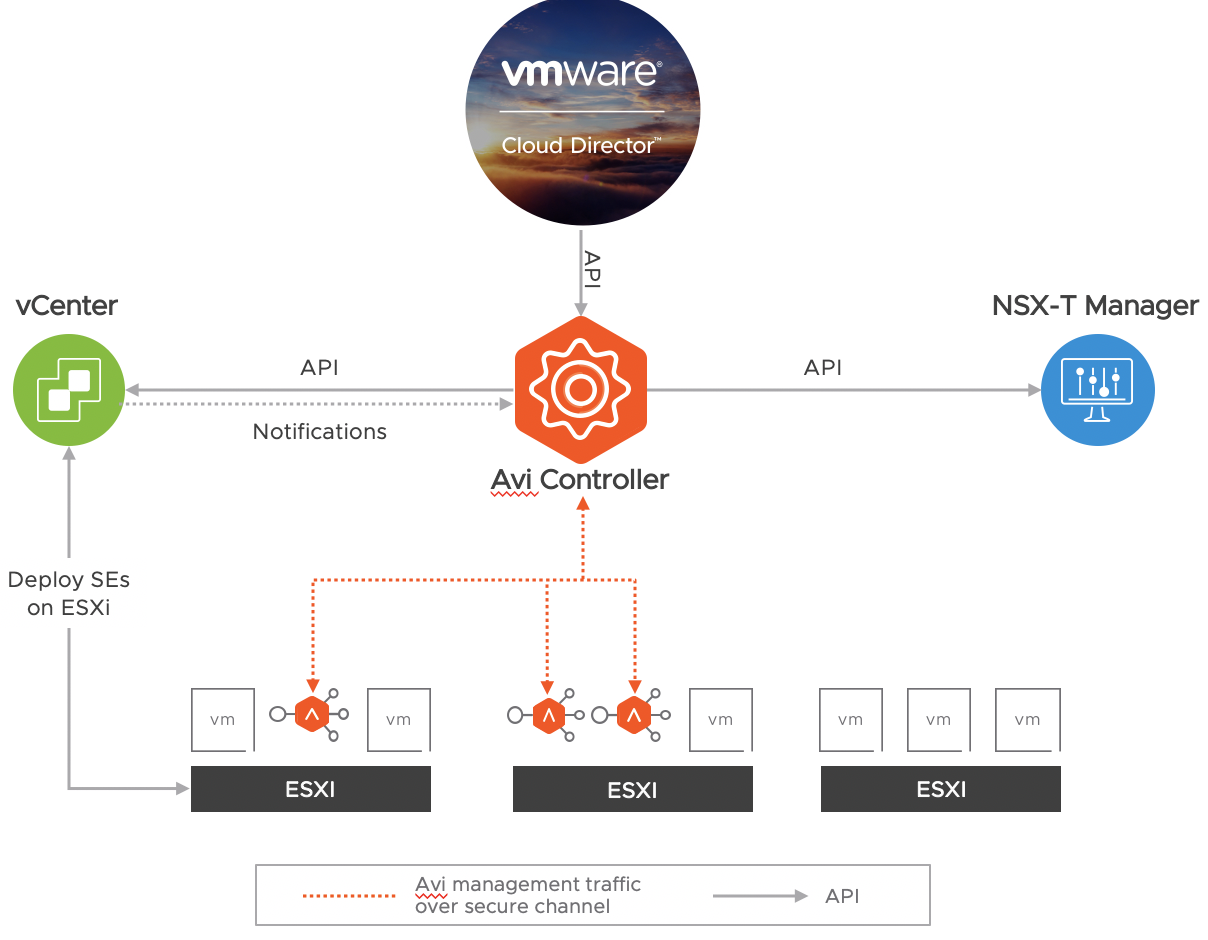
    With the release of Cloud Director 10.2 , NSX ALB is natively integrated with Cloud Director to provider self service Load Balancing as a Service (LBaaS) where providers can release load balancing functionality to tenants and tenants consume load balancing functionality based on their requirement. In this blog post we will cover how to configure LBaaS.

    Here is High Level workflow:

    1. Deploy NSX ALB Controller Cluster
    2. Configure NSX-T Cloud
    3. Discover NSX-T Inventory,Logical Segments, NSGroups (ALB does it automatically)
    4. Discover vCenter Inventory,Hosts, Clusters, Switches (ALB does it automatically)
    5. Upload SE OVA to content library (ALB does it automatically, you just need to specify name of content library)
    6. Register NSX ALB Controller, NSX-T Cloud and Service Engines to Cloud Director and Publish to tenants (Provider Controlled Configuration)
    7. Create Virtual Service,Pools and other settings (Tenant Self Service)
    8. Create/Delete SE VMs & connect to tenant network (ALB/VCD Automatically)

    Deploy NSX ALB (AVI) Controller Cluster

    The NSX ALB (AVI) Controller provides a single point of control and management for the cloud. The AVI Controller runs on a VM and can be managed using its web interface, CLI, or REST API but in this case Cloud Director.The AVI Controller stores and manages all policies related to services and management. To ensure AVI controllers High Availability we need to deploy 3 AVI Controller nodes to create a 3-node AVI Controller cluster.

    Deployment Process is documented Here & Cluster creation Process is Here

    Create NSX-T Cloud inside NSX ALB (AVI) Controller

    NSX ALB (AVI) Controller which uses APIs to interface with the NSX-T manager and vCenter to discover the infrastructure.here is high level activities to configure NSX-T Cloud in NSX ALB management console:

    1. Configure NSX-T manager IP/URL (One per Cloud)
    2. Provide admin credentials
    3. Select Transport zone (One to One Mapping – One TZ per Cloud)
    4. Select Logical Segment to use as SE Management Network
    5. Configure vCenter server IP/URL (One per Cloud)
    6. Provide Login username and password
    7. Select Content Library to push SE OVA into Content Library

    Service Engine Groups & Configuration

    Service Engines are created within a group, which contains the definition of how the SEs should be sized, placed, and made highly available. Each cloud will have at least one SE group.

    1. SE Groups contain sizing, scaling, placement and HA properties
    2. A new SE will be created from the SE Group properties
    3. SE Group options will vary based upon the cloud type
    4. An SE is always a member of the group it was created within in this case NSX-T Cloud
    5. Each SE group is an isolation domain
    6. Apps may gracefully migrate, scale, or failover across SEs in the groups

    ​Service Engine High Availability:

    Active/Standby

    1. VS is active on one SE, standby on another
    2. No VS scaleout support
    3. Primarily for default gateway / non-SNAT app support
    4. Fastest failover, but half of SE resources are idle

    ​Elastic N + M 

    1. All SEs are active
    2. N = number of SEs a new Virtual Service is scaled across
    3. M = the buffer, or number of failures the group can sustain
    4. SE failover decision determined at time of failure
    5. Session replication done after new SE is chosen
    6. Slower failover, less SE resource requirement

    Elastic Active / Active 

    1. All SEs are active
    2. Virtual Services must be scaled across at least 2 Service engines
    3. Session info proactively replicated to other scaled service engines
    4. Faster failover, require more SE resources

    Cloud Director Configuration

    Cloud Director Configuration is two fold, Provider Config and Tenant Config, lets first cover provider Config…

    Provider Configuration

    Register AVI Controller: Provider administrator login as a admin and register AVI Controller with Cloud Director. provider has option to add multiple AVI controllers.

    NOTE – incase if you are registering with NSX ALB’s default self sign certificate and if it throws error while registering , then regenerate self sign certificate in NSX ALB.

    Register NSX-T cloud

    Now next thing is we need to register NSX-T cloud with Cloud Director, which we had configured in ALB controller:

    1. Selecting one of the registered AVI Controller
    2. Provide a meaning full name to the controller
    3. Select the NSX-T cloud which we had registered in AVI
    4. Click on ADD.

    Assign Service Engine groups

    Now register service engine groups either “Dedicated” or “Reserved” based on tenant requirement or provider can have both type of groups and assign to tenant based on requirements.

    1. Select NSX-T Cloud which we had registered above
    2. Select the “Reservation Model”
      1. Dedicated Reservation Model:- For each tenant Organization VDC Edge gateway, AVI will create two Service Engine nodes for each LB enabled Org VDC Edge GW.
      2. Shared Reservation Model:- Shared is elastic and shared among all tenants. AVI will create pool of service engines that are going to be shared across tenant. Capacity allocation is managed in VCD, Avi elastically deploys and un-deploys service engines based on usage

    Provider Enables and Allocates resources to Tenant

    Provider enables LB functionality in the context of Org VCD Edge by following below steps:

    1. Click on Edges 
    2. Choose Edge on which he want to enable load balancing
    3. Go to “Load Balancer” and click on “General Settings”
    4. Click on “Edit”
    5. Toggle on to Activate to activate the load balancer
    6. Select Service Specification

    Next step is to assign Service Engines to tenant based on requirement, for that go to Service Engine Group and Click on “ADD” and add one of the SE group which we had registered previously to customer’s one of the Edge.

    Provider can restrict usage of Service Engines by configuring:

    1. Maximum Allowed: The maximum number of virtual services the Edge Gateway is allowed to use.
    2. Reserved: The number of guaranteed virtual services available to the Edge Gateway.

    Tenant User Self Service Configuration

    Pools: Pools maintain the list of servers assigned to them and perform health monitoring, load balancing, persistence.

    1. Inside General Settings some of the key settings are:
      1. Provide Name of the Pool
      2. Load Balancing Algorithm
      3. Default Server Port
      4. Persistence
      5. Health Monitor
    2. Inside Members section:
      1. Add Virtual Machine IP addresses which needs to be load balanced
      2. Define State, Port and Ratio
      3. SSL Settings allow SSL offload and Common Name Check

    Virtual Services: A virtual service advertises an IP address and ports to the external world and listens for client traffic. When a virtual service receives traffic, it may be configured to:

    1. Proxy the client’s network connection.
    2. Perform security, acceleration, load balancing, gather traffic statistics, and other tasks.
    3. Forward the client’s request data to the destination pool for load balancing.

    Tenant choose Service Engine Group which provider has assigned to tenant, then choose Load Balancer Pool which we created in above step and most important Virtual IP This IP address can be from External IP range of the Org VDC or if you want Internal IP , then you can use any IP.

    So in my example, i am running two virtual machines having Org VDC Internal IP addresses and VIP is from external public IP address range, so if I browse VIP , i can reach to web servers sucessfully using VCD/AVI integration.

    This completes basic integration and configuration of LBaaS using Cloud Director & NSX Advance Load Balancer. feel free to share feedback.

  • VMware Cloud Director Two Factor Authentication with VMware Verify

    In this post, I will be configuring  two-factor authentication (2FA) for VMware Cloud Director using Workspace ONE Access formally know as VMware Identity Manager (vIDM). Two-factor authentication is a mechanism that checks username and password as usual, but adds an additional security control before users are authenticated. It is a particular deployment of a more generic approach known as Multi-Factor Authentication (MFA).Throughout this post, I will be configuring VMware Verify as that second authentication.

    What is VMware Verify ?

    VMware Verify is built in to Workspace ONE Access (vIDM) at no additional cost, providing a 2FA solution for applications.VMware Verify can be set as a requirement on a per app basis for web or virtual apps on the Workspace ONE launcher OR to login to Workspace ONE to view your launcher in the first place. The VMware Verify app is currently available on iOS and Android.VMware Verify supports 3 methods of authentication:

    1. OneTouch approval
    2. One-time passcode via VMware Verify app (soft token)
    3. One-time passcode over SMS

    By using VMware Verify, security is increased since a successful authentication does not depend only on something users know (their passwords) but also on something users have (their mobile phones), and for a successful break-in, attackers would need to steal both things from compromised users.

    1. Configure VMware Verify

    First you need to download and install “VMware Workspace ONE Access“, which is very simple to deploy using ova. VMware Verify is provided as-a-service, and thus, it does not require to install anything on-premise server. To enable VMware Verify, you must contact VMware support. They will provide you a security token which is all you need to enable the integration with VMware Workspace One Access (vIDM).Once you get the token, login into vIDM as an admin user and go to:

    1. Click on the Identity & Access Management tab
    2. Click on the Manage button
    3. Select Authentication Methods
    4. Click on the configure icon (pencil) next to VMware Verify
      1. undefined
    5. A new window will pop-up, on which you need to select the Enable VMware Verify checkbox, enter the security token provided by VMware support, and click on Save.
      1. undefined
      2. undefined

    2. Create a Local Directory on VMware Workspace One Access

    VMware Workspace ONE Access not only supports Active Directories , LDAP Directories but also supports other types of directories, such as local directories and Just-in-Time directories.For this Lab , i am going to create a local directory using local directory feature of Workspace One Access,Local users are added to a local directory on the service. we need to manage the local user attribute mapping and password policies. You can create local groups to manage resource entitlements for users.

    1. Select the Directories tab
    2. Click on “Add Directory”
      1. undefined
    3. Specify Directory and domain name (this is same domain name i have registered for VMware Verify
      1. undefined

    3. Create/Configure a built-in Identity Provider

    Once the second authentication factor is enabled as described on steps 1 and 2, it must next be added as an authentication method to a Workspace one access built-in provider. If in your environment already exists one, you can re-configure it. Alternatively, you can create a new built-in identity provider as explained below.Login to Workspace One Access as an admin user and then:

    1. Select the Identity & Access Management tab
    2. Click on the Manage button
    3. Click on the Identity Providers link
    4. Click on the Add Identity Provider button and select Create Built-in IDP
      1. undefined
    5. Enter a name describing the Identity Provider (IdP)
    6. Which users can authenticate using the IdP – In the example below I am selecting the local directory that i had created above.
    7. Network ranges from which users will be directed to the authentication mechanism described on the IdP
    8. The authentication methods to associate with this IdP – Here I am selecting VMware Verify as well as Local Directory.
    9. Finally click on the Add button
      1. undefined

    4. Update Access Policies on Workspace One Access

    The last configuration step on Workspace One Access (vIDM) is to update the default access policy to include the second factor authentication mechanism. For that, login into Workspace One Access as an admin user and then:

    1. Select the Identity & Access Management tab
    2. Click on the Manage button
    3. Click on the Policies link
    4. Click on the Edit Default Policy button
    5. This will open up new page showing the details of the default access policy. Go to “Configuration” and Click on “ALL RANGES”.

    A new window will pop-up. Modify the settings right below the line “then the user may authenticate using:”

    1. Select Password as the first authentication method – This way users will have to enter their ID and password as defined on the configured Local Directory
    2. and Select second authentication mechanism. here I am adding VMware Verify ā€“ This will make that after a successful password authentication, users will get a notification on their mobile phones to accept or deny the login request.
    3. I am leaving empty the line “If preceding Authentication Method fails or is not applicable, then:” ā€“ This is because I don’t want to configure any fallback authentication mechanism or you can choose based on your choice.

    5. Download the app in your mobile and register a user from an Cloud Director Organization

    1. Access the app provider on your mobile phone. Search for VMware Verify and download it.
      1. undefined
    2. Once it is downloaded, open the application. It will ask for your mobile number and e-mail address. Enter your domain details. On the screenshot below, I’m providing my mobile number and an e-mail which is only valid in my lab.After clicking OK, you will be provided two options for verifying your identity:
      1. undefined
    1. Receiving and SMS message – SMS will have registration code which will allow you to enter in to APP along with registration code.
      1. undefined
    2. Receiving a Phone Call – after clicking on this option, the app will show a registration code you will need to type on the phone pad once you receive the call
    3. Since i am using SMS way to doing it , it will ask you to Enter the code which you have received in SMS Manually (XopRcVjd4u2)
      1. undefinedundefined
    4. Once your identity has been verified, you will be asked to protect the app by setting a PIN number. After that, the app will show there are not accounts configured yet.
      1. undefinedundefined
    5. Click on Account and add the account
      1. undefinedundefined

    Immediately after that, we will start receiving tokens on the VMware Verify mobile app. so at this moment, you are ready to move to the next step.

    6. Enable VMware Cloud Director Federation with VMware Workspace ONE Access

    There are three authentication methods that are supported by vCloud Director:

    Local: local users which are created at the time of installing vCD or while creating any new organization.

    LDAP service:  LDAP service enables the organisations to use their own LDAP servers for authentication. Users can then be imported into vCD from the configured LDAP.

    SAML Identity Provider: A SAML Identity Provider can be used to authenticate users in organisations. SAML v2.0 metadata is required for the service to be configured. The metadata must include the location of the single sign-on service, the single logout service, and the X.509 certificate for the service. In this post we will be using federation between VMware Workspace One Access with VMware Cloud Director.

    So, let’s go ahead and login to VMware Cloud Director Organization and go to “Administration” and Click on “SAML”

    1. Enable Federation by setting “Entity ID” to any other unique string , in this case i am setting “org name” , in my case my org name is “abc”
    2. Then click on “Generate” to generate a new certificate and click “SAVE”
      1. undefined
    3. Download Metadata from the link , It will download file “spring_saml_metadata.xml“. This activity can be performed by system or Org Administrator.
      1. undefined
    4. In VMware Workspace ONE Access(VIDM) admin console, go to “Catalog” and create new web application.
      1. Write application name, description and upload nice icon and choose category.
      1. undefined
    5. In the next screen keep Authentication Type SAML 2.0 and paste the xml metadata downloaded in step #1 into the URL/XML window. Scroll down to Advanced Properties. 
      1. undefined 
    6. In Advanced Properties we will keep the defaults but add Custom Attribute Mappings which describe how VIDM user attributes will translate to VCD user attributes. Here is the list:
      1. undefined
    7. Now we can finish the wizard by clicking next, select access policy (keep default) and reviewing the Summary on the next screen.
      1. undefined
    8. Next we need to retrieve metadata configuration of VIDM – this is by going back to Catalog and clicking on Settings. From SAML Metadata download Identity Provider (IdP) metadata.
      1. undefined
    9. Now we can finalize SAML configuration in vCloud Director. on Federation page Toggle Use SAML Identity Provider button to enable it and import the downloaded metadata (idp.xml) with Browse and Upload buttons and click Apply.
      1. undefined
    10.  we first need to import some users/groups to be able to use SAML. You can import VMware Workspace ONE Access(VIDM) users by their user name or group. We can also assign role to the imported user.
      1. undefined

    This completes the federation process between VMware Workspace ONE Access (VIDM) and VMware Cloud Director. For More details you can refer This Blog Post.

    Result – Cloud Director Two Factor Authentication in Action

    Lets your tenant go to browser and browse their tenant URL, they will get atomically redirected to VMware Workspace ONE Access page for authentication:

    1. User enters user name and password and if user get successfully authenticated , if moves to 2FA
    2. on the next step, user gets a notification on thier mobile phones
      1. undefined
    3. Once user approves the authentication on the phone , VMware Workspace ONE Access allows access to user based on the role given on VMware Cloud Director.

    On-Board a New User

    1. Create a new User in VMware Workspace and also add him to application access.
      1. undefined
      2. undefined
    2. User gets an email to setup his/her password, user must configure his/her password.
      1. undefined
    3. Administrator login to Cloud Director and Import newly created user from SAML with a Cloud Director role
      1. undefined
      2. undefined
    4. User browses cloud URL and after user logs in to portal with user id and password, he/she asked to provide mobile number for second factor authentication.
      1. undefinedundefined
    5. After entering mobile number , if user has installed “VMware Verify” app , he/she get notification for Approve/Deny or if app has not been installed , click on “Sign in with SMS” , user will receive an SMS , enter that SMS for second factor authentication.
      1. undefinedundefinedundefined
    6. Once user enters the passcode received on his/her cell phone, VMware Workspace One Access allow user to login to cloud director.
      1. undefined

    This completes the installation and configuration of VMware Verify with VMware Cloud Director. you can add additional things like branding of your cloud etc.. which will give this your cloud identity.

  • vCloud Director 10 – NSX-T – Tenant Configuration

    In continuation of my previous post , in this post i will be covering tenant side configuration of vCloud Director 10 along with NSX-T.

    Create OrgVDC

    To provide resources to an Tenant organization, you create one or more organization virtual data centers for tenant organization.To Create an OrgVDC , you need to go to “Cloud Resources” then “Organization VDCs” and Click on New:

    1. Name Tenant OrgVDC appropriately
    2. Select the Organisation
    3. Select the PVDC which is NSX-T backed.
    4. Choose appropriate allocation model (flex)
    5. Configure reservation pool related settings
    6. Choose appropriate storage policy
    7. enable “Network Pool” and select correct network pool and specify max networks
    8. Review and click on Finish.

    This slideshow requires JavaScript.

    Create Org Edges

    To connect tenants networks created inside org vDC to out side , we need to create edge gateways, which internally automatically create T1 router, here are the steps to create edge:

    1. Login to tenant by clicking on “Open in Tenant Portal” and go to Edges & clickĀ  New
      • 29.png
    2. Name Tenant edge appropriately
    3. Select IP segment and reserve few IPs to talk to external world.
    4. Review configuration and submit

    This slideshow requires JavaScript.

    If you look back in to NSX-T , this will create a Tier-1 router automatically and connect it to Tier-0 router.

    35.png

    Org Edge supported Tenant Operation:

    Currently the following T1 GW networking services are available to tenants:

    • Firewall
    • NAT
    • DHCP (without binding and relay)
    • DNS forwarding
    • IPSec VPN with API only and only apply Policy based with pre share key.

    42.png

    Create Org Networks

    The first network to create for tenant is an organization Virtual Datacenter network, An orgVDC network allows virtual machines in the orgVDC to communicate with each other and to access other networks, including orgVDC networks and external networks, either directly or through an Edge Gateway (T0) that can provide firewall and NAT services as of now. There are three type of org Networks:

    Isolated:

    You can add an isolated orgVDC network, which is accessible only by this organization. This network provides no connectivity to virtual machines outside this organization. Virtual machines outside of this organization have no connectivity to the virtual machines in the organization.

    Routed:

    Routed network control the access to an external network, System administratorsĀ andĀ organization administratorsĀ can configure network address translation (NAT), firewall, and VPN settings to make specific virtual machines accessible from the external network.

    Imported:

    You can import existing NSX-T overlay switch in to org , for this networking type all networking need to be configured and managed out side of vCloud Director.

    This slideshow requires JavaScript.

    Tenant VM External Access:

    As i said tenant networks are not advertised , we need to create SNAT rules to allow external access:

    44.png

    43

    NOTE – Tenant can only self service Isolated and routed networks, there are few options like DFW and Load Balancer still has not been exposed to tenants.


  • Upgrade NSX-T 2.3 to NSX-T 2.4

    This blog is about how I upgraded my homelab from NSX-T from version 2.3 to version 2.4.First downloaded the NSX-T 2.4.x upgrade bundle (the MUB-file) from the My VMware download portal.

    Checking prerequisites

    before starting the upgrade , check the compatibly and ensure that the vCenter and ESXi versions are supported.

    Upgrade NSX Manager Resources

    In my lab the NSX-Manager VM was running with 2vCPU and 8 GB memory, with this new version minimum requirements went up to 4 vCPUS and to 16 GB of RAM.So in my case I had to shut down the NSX-T Manager and upgrade the specs to 6 vCPUs and 16 GB of memory as i was seeing 4 vCPUs were 100% getting utilised.

    The Upgrade Process

    Upload the MUB file to the NSX Manager1.png

    After uploading the MUB file to the NSX Manager which takes some time, the file is validated and extracted which again takes little extra time. so in my Lab downloading, uploading, validating and extracting the upgrade bundle took around 40 – 50 minutes. so have patience.

    Begin upgrade and accept EULA.23

    After you click on “Begin Upgrade” , accept EUPA, it will throw a message , upgrade “upgrade corrdinator” , click on “Yes” and wait for some time , post “upgrade coordinator” update session will logout , login again , you will see a new upgrade interface: NOTE – Do not initiate multiple simultaneous upgrade processes for the upgrade coordinator.

    4.png

    Host Upgrade

    Select the hosts and click on Start to start the hosts upgrade process.

    5.png

    While upgrade is going on continue to check you vCenter , at times ESXi host goes not go in maintenance mode due to some rule/restriction created by you , so help your ESXi server to in to maintenance mode.

    6.png

    7.png

    Continue to monitor the progress once done successfully , move to “Next”.

    Edge Upgrade

    Clicking on “NEXT” will take you to Edge section , click on “Start” and continue to monitor the progress..

    8.png

    very simple and straight forward process , once upgrade completed , click on “Next”

    9.png

    Controller Upgrade

    In NSX2.4 onwards , controllers has been merged in to NSX Manager ,so no need to upgrade controller , move ahead and upgrade NSX Manager.

    10.png

    NSX Manager Upgrade

    upgrade of NSX Manager gives to two options:

    • Allow Transport Node connection after a single node cluster is formed.
    • Allow Transport Node connections only after three node cluster is formed.

    choose option which is configured in your environment.

    11

    Accept the upgrade notification. You can safely ignore any upgrade related errors such as, HTTP service disruption that appears at this time. These errors appear because the Management plane is rebooting during the upgrading. Wait until the reboot finishes and the services are reestablished.

    You can get in to CLI, log in to the NSX Manager to verify that the services have started run: #get service When the services start, the Service state appears as running. Some of the services include, SSH, install-upgrade, and manager.

    Finally after around one hour in my Lab , Manager is also get updated successfully.

    12.png

    so this completes the upgrade process, check the health of every NSX-T component and if everything is green , you can now go ahead and shutdown and delete the NSX controller.Hope this help you in your NSX-T upgrade planning.


  • VMware PKS, NSX-T & Kubernetes Networking & Security explained

    In continuation of my last post on VMware PKS and NSX-T explaining on getting started with VMware PKS and NSX-T (Getting Started with VMware PKS & NSX-T) , here is next one explaining around behind the scene NSX-T automation for Kubernetes by VMware NSX CNI plugin and PKS.

    NSX-T address all the K8s networking functions, load balancing , IPAM , Routing and Firewalling needs, it supports complete automation and dynamic provisioning of network objects required for K8s and it’s workload and this is what i am going to uncover in this blog post.

    Other featuresĀ  like it has support for different topology choice for POD and NODE networks (NAT or NO-NAT) , it supports network security policies for Kubernetes , Clusters , Namespaces and individual services and it also supports network traceability/visibility using NSX-T in built operational tools for kubernetes.

    I will be covering the deployment procedure of PKS after some time but just want to let explain that what happens on NSX-T side when you run “#pks create cluster” on PKS command line..and then when you create K8s Namespaces and PODs

    pks create cluster

    So when you run #pks create cluster with some argument , it goes to vCenter and deploys Kubernetes Master and Worker VMs based on specification you have chosen during deployment and on NSX-T side a new logical switch get created for these vms and get connected to these vms. (in this Example one K8s Master and 2 Nodes has been deployed) , along with logical switch , a Tier-1 cluster router get created which get connected to yourĀ organisation’s Tier-0 router.

    K8s Master and Node Logical Switches

    13.png

    K8s Cluster connectivity towards Tier-0

    12.png

    Kubernetes Namespaces and NSX-T

    Now if K8s cluster deployed successfully, Kubernetes cluster by default deploys three name space:

    • DefaultĀ – The default namespace for objects with no other namespace.
    • kube-systemĀ – The namespace for objects created by the Kubernetes system.
    • kube-publicĀ – The namespace is created automatically and readable by all users (including those not authenticated). This namespace is mostly reserved for cluster usage, in case that some resources should be visible and readable publicly throughout the whole cluster. The public aspect of this namespace is only a convention, not a requirement.

    for each default namespace, PKS automatically deploys and configures NSX-T Logical Switchs and each logical switch will have its own Tier-1 router connected to Tier-0.

    14.png

    pks-infrastructure Namespace and NSX-T

    in the above figure you can clearly see “default”,”kube-public” and “kube-system” Logical Switches. there is another Logical Switch “pks-infrastructure” get created which is pks specific namespace and running pks related stuff like NSX-T CNI. “pks-infrastructure” is running NSX-NCP CNI plugin to integrate NSX-T with kubernetes.

    15.png

    kube-system Namespace & NSX-T

    Typically, this runs pod like heapster , kube-dns , kubernetes-dashboard,Ā  monitoring db , telemetry agent and stuff like ingresses and so on if you deploy so.

    16.png

    on NSX-T side as explained earlier a Logical switch get created for this Namespace and for each system POD a logical port get created by PKS on NSX-T.

    17.png

    Default Namespace & NSX-T

    This is the cluster’s default namespace which is used forĀ holding the default set of pods, services, and deployments used by the cluster. so when you deploy a POD without creating/specifying a new name space , “default Namespace” becomes default container to hold these pods and as explained earlier this also has its own NSX-T logical switch with a uplink port to Tier-1 router.

    18.png

    now when you deploy a Kubernetes pod without a new namespace , since that POD will be part of “Default Namespace”, PKS create a NSX-T logical port on the default logical switch.Ā  Ā let’s create a simple POD:

    19.png

    let’s go back to NSX-T’sĀ  “Default Namespace” logical switch:

    20.png

    as you can see a new logical port has been created on default logical switch.

    New Namespace & NSX-T

    Kubernetes supports multiple virtual clusters backed by the same physical cluster. These virtual clusters are called namespaces. in simple terms Namespaces are like org vdc in vCD and Kubernetes best practice is to arrange PODs in namespaces. so when we create a new Namespace , what happens in NSX-T ?

    i have created a new Namespace called “demo”.

    23.png

    if you observe below images left image showing default switches and right image is showing logical switches after creation of new Namespace.

    and as you can see a new Logical switch has been created for new Namespace.

    if you are creating PODs in default Namespace then all the pods get attached to default logical switch and if you are creating Namespace ( which is K8s best-practice) then a new logical switch get created and any POD which is getting deployed in this namespace will be part of its NSX-T logical switch and this new logical switch will also have its own Tier-1 router connecting to Tier-0 router.

    24.png

    Expose PODs to Outer World

    in this example we deployed POD and get the internal network connectivity but internal only connectivity is not going to give access to this web server to outer world and this is default forbidden in kubernetes , so we need to expose this deployment using load balancer to the public interface on the specific port. let’s do that:

    26.png

    27.png

    Lets browse this App using EXTERNAL-IP as you might know CLUSTER-IP is internal ip.

    33.png

    Kubernetes Cluster and NSX-T Load Balancer

    As above when we expose this deployment using service on NSX-T there is a cluster load balancer get deployed automatically when we create cluster , on this load balancer NSX-CNI go ahead and add pod to virtual servers under a new load balancer VIP.

    28.png

    if we drill down to pool members of this VIP , we will see our kubernetes pod ep ips.

    29.png

    behind the scene when you deploy a cluster a LB logical switch and LB Tier-1 router which is having logical connectivity to the Load Balancer and Tier-0 Router , so that you can access the deployment externally.

    3031

    This is what your Tier-0 will look like, having connectivity to all the Tier-1 and Tier-1 is having connected to Namespace logical switches.

    32.png

    these all logical switchs, Tier-1 router , Tier-0 router creations , their connectivity , LB creations etc all has been done automatically by NSX-T container (CNI) plugin and PKS. i was really thrilled when i tried this first time and it was so simple , if you understood the concept.

    Kubernetes and Micro-segmentation

    The NSX-T container plugin helps to exposure of container “Pods”as NSX-T logical switch /ports and because of this we can easily implement micro-segmentationĀ rules. once “Pods ” expose to the NSX ecosystem, we can use the same approach we have with Virtual Machines for implementing micro segmentation and other security measures.

    3435

    or you can use security groups based on tags to achieve micro segmentation.

    3637


    This is what i have tried in this post to explain what happen behind the scene on NSX-T networking stack when you deploy and expose your applications on kubernetes and how we can bring in proven NSX-T based micro-segmentation.

    Enjoy learning PKS,NSX-T and Kubernetes one of the best combination for Day-1 and Day-2 operation of kubernetes šŸ™‚ and feel free to comment and suggestions.


  • Upgrade NSX-T 2.1 to NSX-T 2.3

    I am working on PKS deployment and will soon sharing my deployment procedure on PKS but before proceeding with PKS deployment, i need to upgrade my NSX-T lab environment to support latest PKS as per below compatibility matrix.

    PKS Version Compatible NSX-T Versions Compatible Ops Manager Versions
    v1.2 v2.2, v2.3 v2.2.2+, v2.3.1+
    v1.1.6 v2.1, v2.2 v2.1.x, 2.2.x
    v1.1.5 v2.1, v2.2 v2.1.x, v2.2.x
    v1.1.4 v2.1 v2.1.x, 2.2.x
    v1.1.3 v2.1 v2.1.0 – 2.1.6
    v1.1.2 v2.1 v2.1.x, 2.2.x
    v1.1.1 v2.1 – Advanced Edition v2.1.0 – 2.1.6

    In this post i will be covering the procedure to upgrade NSX-T 2.1 to NSX-T 2.3.

    So Before proceeding for upgrade , lets check the health of current deployment which is very important because if we start upgrading the environment and once upgrade is completed and after upgrade if some thing is not working , we will not come to know whether before upgrade it was working or not , so lets get in to validation of health and version checks.

    Validate Current VersionĀ Components Health

    First thing to check the Management Cluster and Controller connectivity and ensure they are up.

    Next is to Validate host deployment status and connectivity.

    34

    Check the Edge health

    5.png

    Lets check the Transport Node Health

    6

    Upgrade Procedure

    Now Download the upgrade bundle

    7.png

    Go to NSX Manager and browse to Upgrade

    8.png

    Upload the downloaded upgrade bundle file in NSX Manager

    9.png

    Since upgrade bundle is very big in size , it will take lots of time in upload, extraction and verification.Once the package has uploaded, click to “BEGIN UPGRADE”.

    11

    The upgrade coordinator will then check the install for any potential issues. In my environment there is one warnings for the Edge that the connectivity is degraded – this is because of i have disconnected 4 th nic which is safe to ignore, so when you are doing for your environment , please access all the warnings and take necessary actions before proceeding with upgrade.

    12

    Click Next will take you to view the Hosts Upgrade page. Here you can define the order and method of upgrade for each host, and define host groups to control the order of upgrade. I’ve gone with the defaults, serial (one at a time) upgrades over the parallel because i have two hosts in each clusters.

    Click START to begin the upgrade, and the hosts will be put in maintenance mode, then upgraded and rebooted if necessary. ensure you need to have DRS enabled and the VMs on the hosts must be able to vMotion off of the host being put in maintenance mode. Once the host has upgraded, and the Management Plane Agent has reported back to the Manager, the Upgrade Coordinator will move on to the next host in the group.

    13.png

    Once the hosts are upgraded, click next to move to the Edge Upgrade page. Edge Clusters can be upgraded parallel if you have multiple edge clusters, but the Edges which has formed the Edge Clusters and upgraded serially to ensure connectivity is maintained. In my lab , i have a single Edge Cluster with two Edge VMs, so this will be upgraded one Edge at a time.Click on the “START” to start the edge upgrade process.

    14

    15

    Once the Edge Cluster has been upgraded successfully, click NEXT to move to the Controller Node Upgrade Page. here you can’t change the sequence of upgrade of the controllers, controllers are done in parallel by default. (in my Lab i am running a single controller because of resource constraint but in production you will see three controllers deployed in a cluster). Click on “START” to begin the upgrade process.

    16.png

    Once the controller upgrade has been completed, click NEXT to move to the NSX Manager upgrade page. The NSX Manager will become unavailable for about 5 minutes after you click START and it might take 15 to 20 minutes to upgrade the manager.

    17.png

    Once the Manager upgrade has completed. review the upgrade cycle.

    19.png

    you can re-validate the installation as we did at the start of the upgrade, checking that we have all the green lights on, and the version of components have increased.